


How do I schedule my Mandatory Milestone Advising Program appointment?
There are several ways to schedule your MMAP appointment. If you have any difficulties scheduling your appointment, please reach out to your academic advising office.
- Upon signing into CatCloud, click on Services and then Campus Contacts.
- Image

- You will then see a list of all advisors assigned to you. Click Schedule Appointment.
- Image

- Please note that Eller College of Management students will be redirected to eSMS at this point to schedule. All other students, continue with these instructions.
- On their calendar, click any open availability (light blue) that works with your schedule.
- Image

- You will then be prompted to select a Meeting Type (In Person, Zoom, or Phone), enter the purpose of your meeting, and indicate if you would like to receive text message reminders. (If you had previously checked yes to that, you would see a reminder that you had opted in.) Once that is complete, click Confirm.
- Image

- Click Confirm on the Appointment Confirmation page.
- Image

- You will also receive an email confirmation.
- Image

- Navigate to the Advising Directory by Major, Minor, or Certificate, and click on the major/minor/certificate you are interested in.
- Image
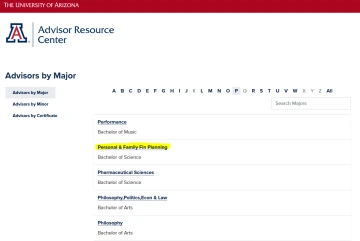
- Find the advisor that applies to you (e.g. correct campus, last name, academic year, student group). Click Schedule Appointment.
- Image

- On their calendar, click any open availability (light blue) that works with your schedule.
- Image
- You will then be prompted to select a Meeting Type (In Person, Zoom, or Phone), enter the purpose of your meeting, and indicate if you would like to receive text message reminders. (If you had previously checked yes to that, you would see a reminder that you had opted in.) Once that is complete, click Confirm.
- Image
- Click Confirm on the Appointment Confirmation page.
- Image
- You will also receive an email confirmation.
- Image

.